
Configuring Wicd
You have received a CA-certificate (AAA_Certificate_Services.der), which allows your computer to check whether it is really communicating with the login-server, as well as the public and private parts of your authentification combined in one file (cert.p12). Furthermore the email text contains a so-called Identity. You will need both files and the identity for the configuration of Wicd.
Please save the two files in a location of your choice first.
Start your Wicd client. With the GTK interface it should look similar to this:
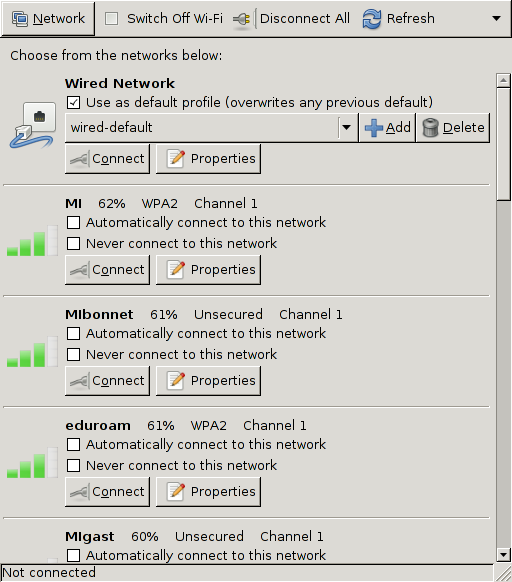
Choose Properties for the network MI and the following window should appear:
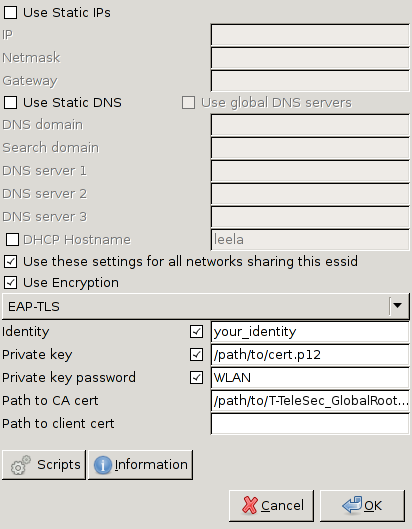
Activate Use these settings for all networks sharing this essid and Use Encryption. For the encryption type you have to choose EAP-TLS.
Next enter your Identity (specified in the email) in the field of the same name.
After that you have to type in the absolute path of your cert.p12 in the field Private key, e.g. /home/username/cert.p12. Do the same for the field Path to CA cert, where you have to enter the path to AAA_Certificate_Services.der.
As the Private key password insert WLAN. This was the last step in the connection properties window, so you can click OK
Now click on Connect (to the MI network).
News
Gerd Faltings awarded Abel Prize 2026
Tingxiang Zou to lead a new Emmy Noether group
Tasho Kaletha awarded Chevalley Prize in Lie Theory 2026
Christoph Thiele awarded Brouwer Medal 2026
Christoph Thiele and Floris van Doorn awarded ERC Synergy Grant
Henning Heller receives Montucla Prize 2025
Thoralf Räsch receives Fakultät teaching award